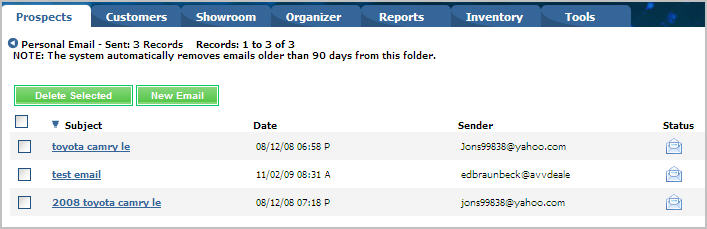
Personal Email is email received in your Personal Email folder. It includes
email from other Web Control users, non-deliverable email and personal
correspondence.
Personal email is also delivered to the manager who owns the "sales@"
address and in many instances it may include email from a lead that is
received from an unrecognized Lead Source Provider (LSP) that cannot be
parsed into a prospect.
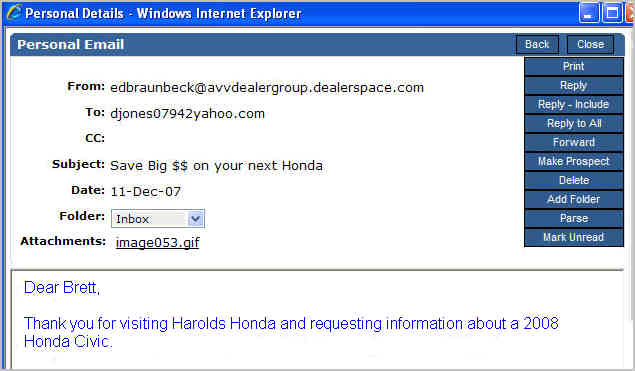
Use the Folder list to move an email to a different sub-folder in your
Personal Folders. The folder name that displays is the name of the current
folder where the email is located. Select
the folder that you want to move the email to from the list.
A link to view the attachment displays in the Attachment field.
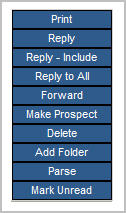
Print
Click Print to print the complete
email.
Reply
Click Reply to send a message
back to the sender of the email. The
text of the original email and any attachments are not included in the
reply.
Reply-Include
Click Reply-Include to send
a message back to the sender of the email. The
text of the original email is included. |
|
Reply to All
Click Reply-All to send a message
back to the sender and all other recipients of the email. The
text of the original email is included. |
Forward
Click Forward to send the message
to another person. Use
Forward to send a messages and attachments to other Web Control users.
Note, you
will not see the attachment when you are forwarding the message, but your
recipient will see it when the message is received. |
Make Prospect
Click Make Prospect to create
a prospect from an email lead. Remember,
an existing prospect's email may be received as a Personal Email
when the prospect sends an email from a different email address. Always
search the existing prospect database
for a match, and then merge the Personal Email with the appropriate prospect
if a match is found. |
Delete
Click Delete to delete the email.
Click Yes to permanently delete
the message or Cancel to keep
it. |
Add Folder
Click Add Folder to add a new
sub-folder to the Personal Folders and reassign the current message to
it. Type the title of the new folder in the New
Folder Name field and click the Save.
|
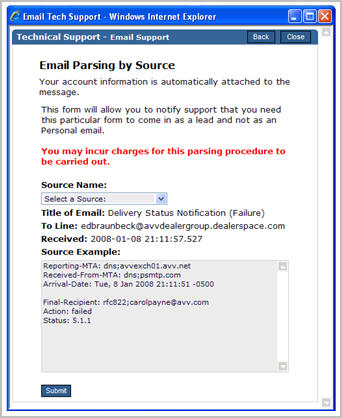
Parse
Click the Parse button to send
a request to format future leads of the same type into prospects instead
of Personal email. The lead must contain the Prospect's first
and last name,
email address, and preferably
the year, make
and model of the vehicle. Leads
must also be received in either plain
text or XML
to be formatted as prospects.
Additionally, you must select a name from Source
list. Do not make changes to the Title or Description of Issue text boxes,
which is used for parsing future leads and must match the format in which
the leads are sent from the source to parse correctly. |
|
Mark Unread
The Mark Unread feature is available to Manager
Users only. Click
Mark Unread to return the status
of the email to Unread, which displays a closed envelope for the Status
icon. |