Assign Sales Process
This
feature is
available to
Manager users only.
Use the features on the Assign Sales Process page to set the criteria
that triggers your dealership's sales processes. From
this page you can:
Assign Sales Processes
Prioritize Sales Processes
You can also edit and delete sales processes from this page, for more
information on editing and deleting sales processes see Create/Edit
Sales Processes.
|
Things
to Remember before Assigning Sales Processes:
Each Sales Status can only be assigned once
Each Type, Make,
Year, and Source
can only be assigned once Each Salesperson can only be assigned once
If Any is selected from the All
Leads Where list, it should be the last process listed |
Assign Sales Processes
When you assign a sales process, you define the situations that cause
a sale process to run.
To assign a sales process:
Click
the Tools tab.
From
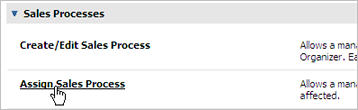
the Sales Processes section, click
Assign Sales Process.
From
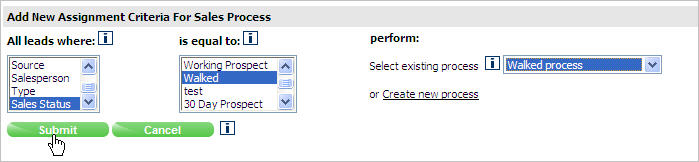
the Add New Assignment Criteria for Sales
Process section, go to All
Leads Where list, and select the identifying lead criteria (ex:
Makes, Year, Sales Status or Source) to trigger the sales process.
In
the Is Equal To list, select one
or more items to further define the lead criteria. For
example, if you want to trigger a sales process when a prospect walks
from the dealership, you can select Sales
Status from the All Leads Where
list and then Walked from the
Is Equal To list.)
In
the Perform section, select an
existing process from the list or click the Create
new process link to create a new process.
Click
Submit.
back to the top
Prioritize Sales Processes
If you have more than one sales process assigned, you need to determine
the order that the system should run them. If
a lead meets the criteria of a sales process assignment, then only the
tasks of the assigned sales process will be associated with the lead.
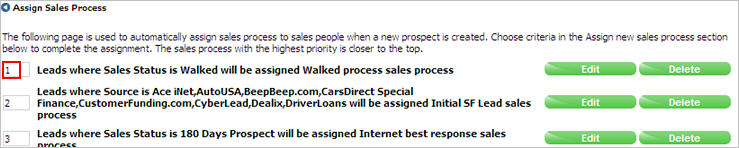
The most
important sales process is assigned the number 1, the next most important
is 2, and so on. The
system runs the processes using the priorities assigned.
To prioritize sales processes:
Click Update
Ordering.

Delete the current number and then type the new
priority number in the box next to the description of the assignment.
Be sure
to use each number one time only.
Click Update
Ordering.
back to the top
Revised: March 2010